 Wholesale Inbox
Guide
Order entry automation for wholesale brands: what to automate
Order entry automation for small wholesale brands. The five steps from emailed PO to order, where errors creep in, and what a person should still check.
Order entry automation means getting an order from the document a customer sent you into your order system without someone retyping it. For a small brand that sells wholesale, the document is usually a retailer's purchase order and the system is usually Shopify.
The words cover a wide range of tools, from enterprise software built around EDI to small apps that read one PDF at a time. This guide breaks order entry into its steps, says which ones are safe to automate fully and which need a person, and lists what to check when you choose a tool.
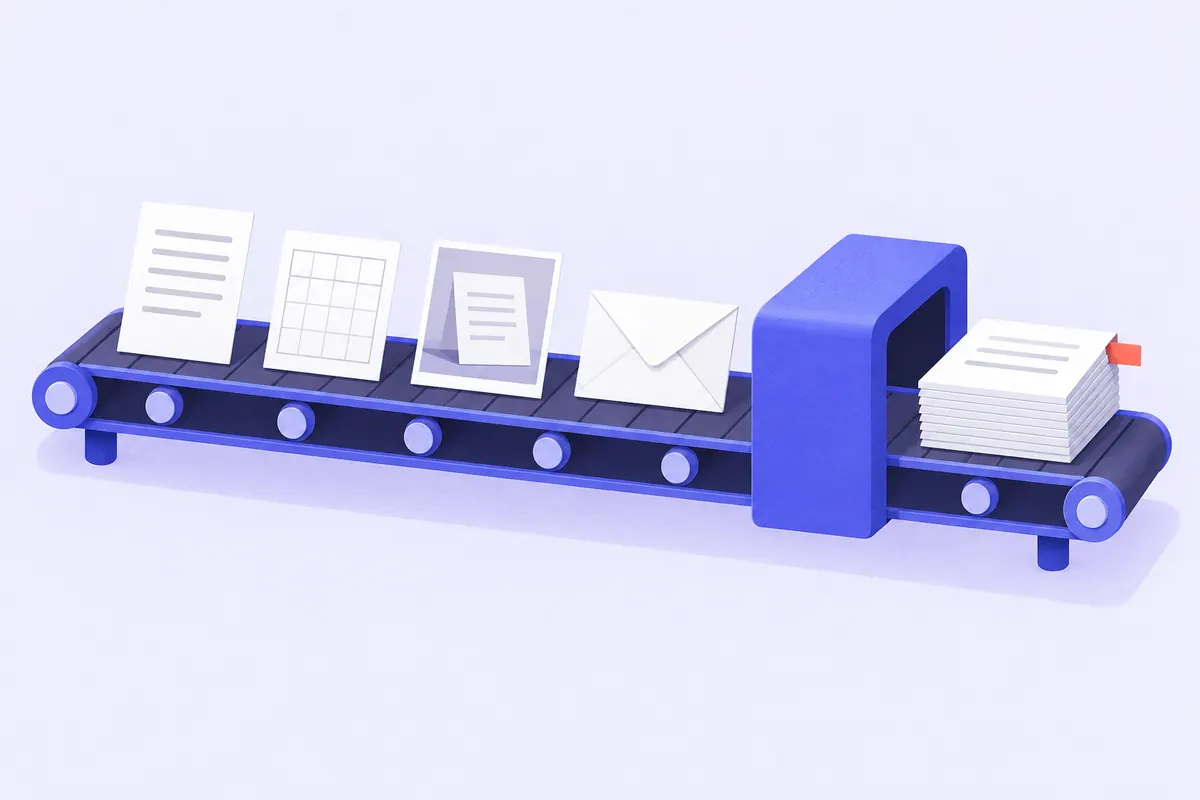
The five steps of order entry
Every order, typed or automated, goes through the same five steps.
- Capture. The PO arrives: an email with a PDF, a spreadsheet, a list typed into the message, or a photo of a paper form.
- Extract. Someone reads it and pulls out the PO number, the retailer, the ship-to, the dates, and each line's item number, description, quantity, unit and price.
- Match. Each line is matched to one of your products. The retailer's item number is often not your SKU, so this means a lookup by SKU, by barcode, or by a list of the retailer's numbers you keep.
- Validate. The extracted order is checked: prices against your price list, quantities against pack sizes, line totals against the PO total, and the PO number against orders you already have.
- Create. The order is entered into your system: in Shopify, as a draft order or an order.
Most of the time spent entering a PO by hand goes on steps 2 and 3. Most of the costly mistakes happen in steps 3 and 4.
What is safe to automate fully
Capture is safe to automate. A shared address that every retailer sends to, and a rule that forwards those emails to your tool, removes the risk of a PO sitting in someone's personal inbox.
Extract can be automated for most documents, with checks. A PDF exported from a buying system has a text layer that software can read reliably. Spreadsheets are easier still. Photos and scanned PDFs are harder. Whatever reads the document, the result should be checked against the source: every item number should appear in the original, quantity times unit price should equal the line total, and the lines should add up to the subtotal. A tool that does those checks for you can tell you when its reading is doubtful.
Matching by exact SKU or barcode is safe to automate. If the PO says OAT-12 and you have a variant with SKU OAT-12, there is nothing for a person to decide.
What a person should still decide
Unmatched lines. When a retailer's item number matches nothing, a person should pick the product. A good tool then remembers that choice for that retailer, so the next PO from them matches on its own.
Price differences. If the PO price is not your list price, someone has to decide which one stands. The retailer may have an old price list, or you may have agreed a promotion. Software can flag the difference; it cannot know which is right.
Units of measure. "4 CS" means four cases, and only you know how many units are in a case of each product. Once someone has said so for a product and retailer, it can be remembered.
The final go-ahead. Creating the order commits stock and starts billing. A short review of the whole PO, with the original beside it, catches what the checks missed.
The useful pattern is: automate the steps where the answer is certain, flag the steps where it is not, and keep a person on the flags and the final approval.
What to look for in a tool
| Question | What a good answer looks like |
|---|---|
| Which formats does it read? | PDFs with text, Excel and CSV, email bodies, and photos, with a clear statement of what it cannot read |
| How does it match lines? | By SKU and barcode, plus the retailer's own item numbers once you confirm them |
| What does it flag? | Unknown items, prices that differ from your list or the last order, missing quantities, totals that do not add up |
| Can you see the original beside the result? | Yes, on the same screen |
| What does it create? | A draft you approve, not a final order or an invoice |
| What happens to a PO it cannot read? | You get told why, and what to send instead |
Measuring whether it works
Before you automate, time a few POs from arrival to entry and count the corrections you make after entry: wrong quantities, wrong prices, duplicate orders. After a month with a tool, measure the same two things. If entry time drops but corrections rise, the tool is skipping checks a person used to do.
Where Wholesale Inbox fits
Wholesale Inbox automates capture, extraction and matching for Shopify brands, and leaves the decisions with you. You forward a retailer's PO (a PDF that is not a scan, an Excel or CSV file, the email itself, or a JPG or PNG photo) to your own address. It reads the lines, checks every item code against the source text and every line total against its quantity and price, matches lines to your Shopify SKUs and barcodes, and remembers each retailer's item numbers once you confirm them. It flags unknown SKUs and prices that differ from your price list or the retailer's last order.
You review each PO next to the original and resolve the flags. Nothing goes into Shopify until you approve it, and then it arrives as a draft order. For the manual process around it, from intake to shipping, see Wholesale order management for Shopify brands: PO to shipment.
Forward a retailer's PO, get a Shopify draft order back
Forward a purchase order (PDF, Excel or CSV file, email or photo) to your Wholesale Inbox address and get a draft order matched to your SKUs, with mismatches flagged for you.
$79/ month
Get startedCancel any time.